What the syntax builder does
A UTM parameter like utm_campaign rarely holds one value. Teams pack several dimensions into it: country, product, promotion, season. The syntax builder is where you decide which building blocks go into each parameter and in which order. The builder then assembles every URL the same way, for everyone.
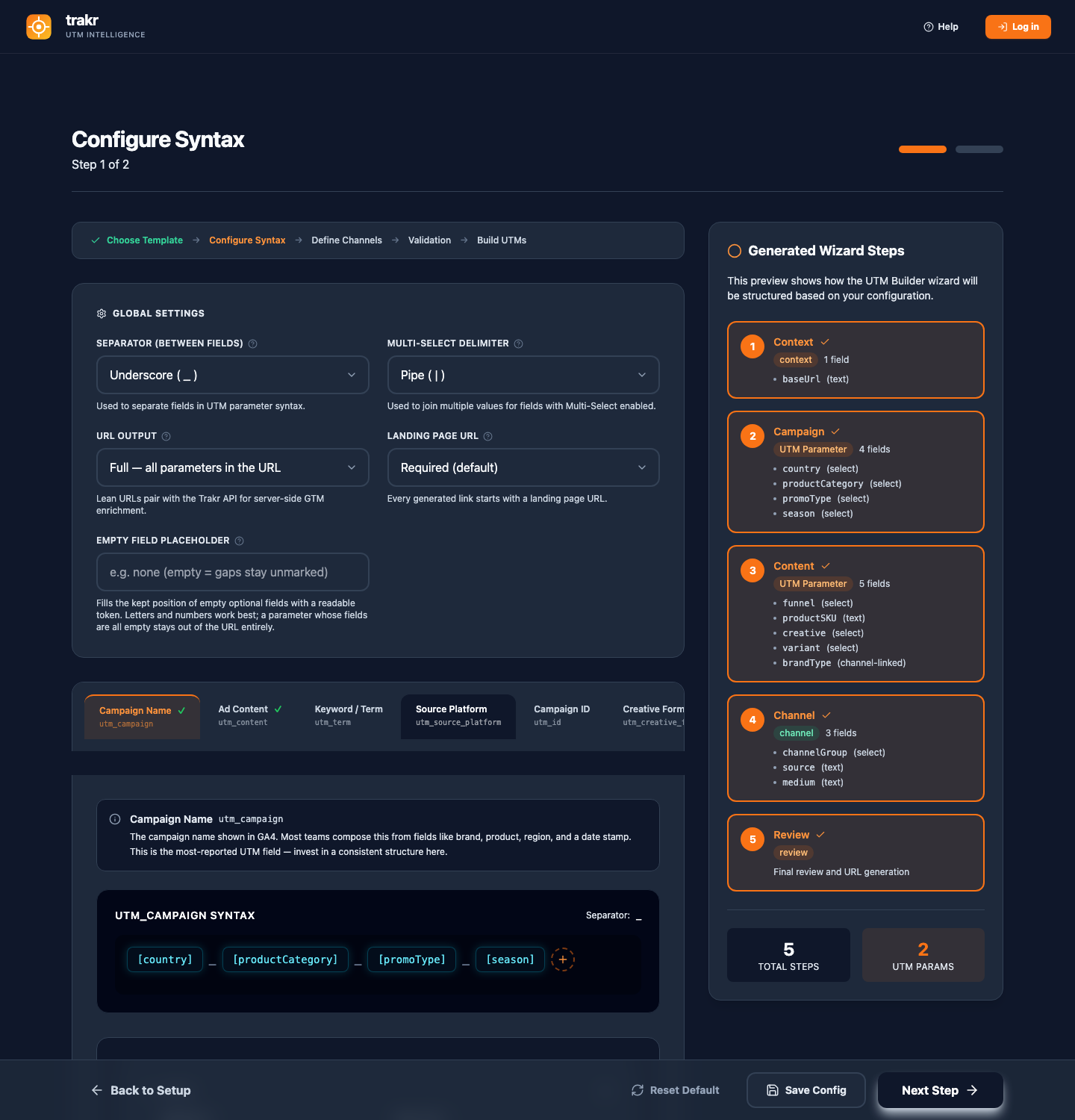
Each tab (Campaign Name, Ad Content, Keyword / Term, and the rest) has its own structure. Add a building block with the Add Field button, then drag to arrange: both the field cards and the preview pills can be dragged, and they reorder the same structure. The order in the row is the order in the final URL value.
Global settings
Five controls at the top of the syntax builder apply to the whole configuration rather than to a single parameter: the separator between fields, the multi-select delimiter, the URL Output profile (Full or Lean), the Landing Page URL requirement (Required, Optional, or Off), and the Empty Field Placeholder that keeps an empty optional field's position in generated values. Each has its own behavior and edge cases, so they get their own page: Global settings.
The seven field types
| Type | What it does | When to use it |
|---|---|---|
| Dropdown | The user picks from preset options. | Default choice. Preset options keep the data clean; typos cannot happen. |
| Text Input | Free typing, sanitized against banned URL characters. | Use sparingly. Free text is where naming conventions go to die; typos fragment your reports. |
| Constant | Always emits the same configured value. | Fixed markers, such as a company code that appears in every URL. |
| Date | A date picker. | Start dates, flight dates. |
| Channel-Linked (Brand) | Filled automatically from the chosen channel's brand setting. | Exactly one per configuration, almost always the brand type field. Full story on the brand type page. |
| Reference | Mirrors another field's value into a second parameter. | When the same value must appear in two parameters without asking the user twice. Single hop only: a reference cannot point at another reference. Setup walkthrough with screenshots: reference fields explained. |
| Auto ID (generated) | Trakr mints a unique 8-character ID for every link, including per row in bulk generation. | Pair it with the Trakr API or server-side GTM so one short ID resolves to the link's full context. One per configuration. Details on the Campaign IDs & Lean URLs page. |
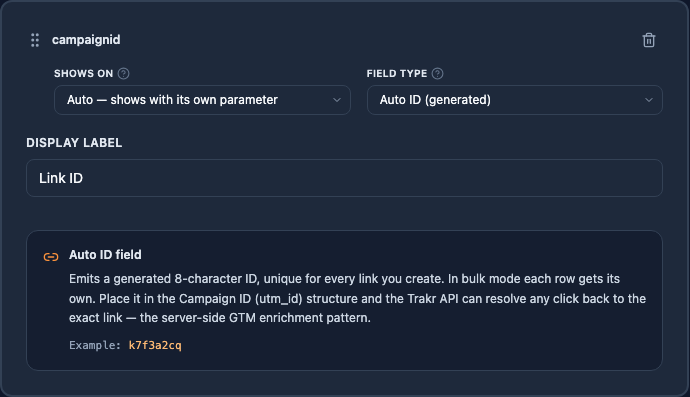
Dropdown, Text, and Date fields also carry a Required field checkbox. Required fields block the link builder's Next button until they have a value; optional fields can stay empty and simply drop out of the generated value. The other four types fill themselves in, so the checkbox does not apply to them.
Shows on: where a field is asked
Every field has a "Shows on" setting: which wizard step asks the user for its value. "Auto" keeps the field with the parameter it belongs to. Moving a field to the Context step is common for values the user knows first, like country; a field can also move to any other parameter's step or to the Review step. The value still lands in whatever parameter structure contains the field; "Shows on" only changes where the question appears.
The live preview
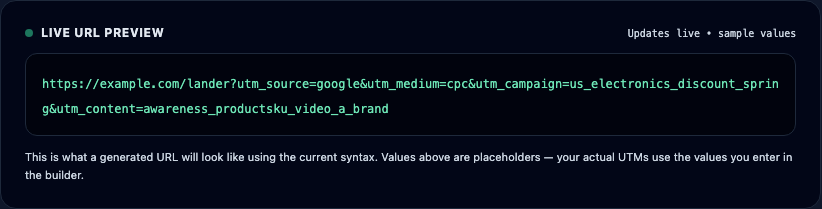
The preview at the bottom of the syntax builder updates with every change. It uses sample values (curated per field where Trakr recognizes one, otherwise a dropdown's first option), so you can judge readability and length before a single real URL exists. Your actual URLs use the values entered in the builder.
Shortcuts worth knowing
A few interactions in the syntax builder are easy to miss and save real time once you know them:
- Rename a pill in place. Click any pill in the structure preview, type the new name, and press Enter (Escape cancels). The field's name and its display label update together.
- Rename a custom parameter. Double-click its name in the Custom Parameters list to edit the URL parameter name right there.
- Renaming never breaks anything. A rename changes what people see; the field's internal identity stays fixed, so structures and Reference fields keep pointing at the right block.
- Deleting asks twice. The trash icon on a field card flips to "Sure?" and reverts by itself after three seconds. On custom parameters, the delete button appears when you hover the row.
- Preview a single field. Expand the Preview block on a field card to see how that one field renders before it enters a URL.
Custom parameters
Beyond the standard UTM set, the Custom Parameters tab lets you define your own query parameters, each with its own structure and fields. A CRM parameter that repeats campaign dimensions is a typical case, often built with Reference fields so nothing is typed twice. The custom parameters & references page walks through the full setup.