What a workspace is
A workspace is an isolated container inside your account. Each one holds its own links, its own history, and (optionally) its own configurations. The people you assign to a workspace work inside it as if it were the whole product: they build URLs, browse the Library, and load templates, and everything they see belongs to that workspace.
The isolation is enforced on the server, in the database's row-level security. It is not a display filter: a member of the Germany workspace cannot reach France data through the app, through an export, or through the API.
| Who | What they see |
|---|---|
| Member of one workspace | Exactly that workspace's links, history, and configurations, plus configurations shared at account level. |
| Member of several workspaces | One workspace at a time, chosen with the workspace switcher in the header. |
| Admin / owner | Everything, across all workspaces. Someone has to run the whole account. |
A worked example: the agency setup
Say you run Northlight Agency and manage campaign tracking for clients in Germany, France, and the Netherlands. The same steps apply if you are one brand running country organizations as sub-accounts.
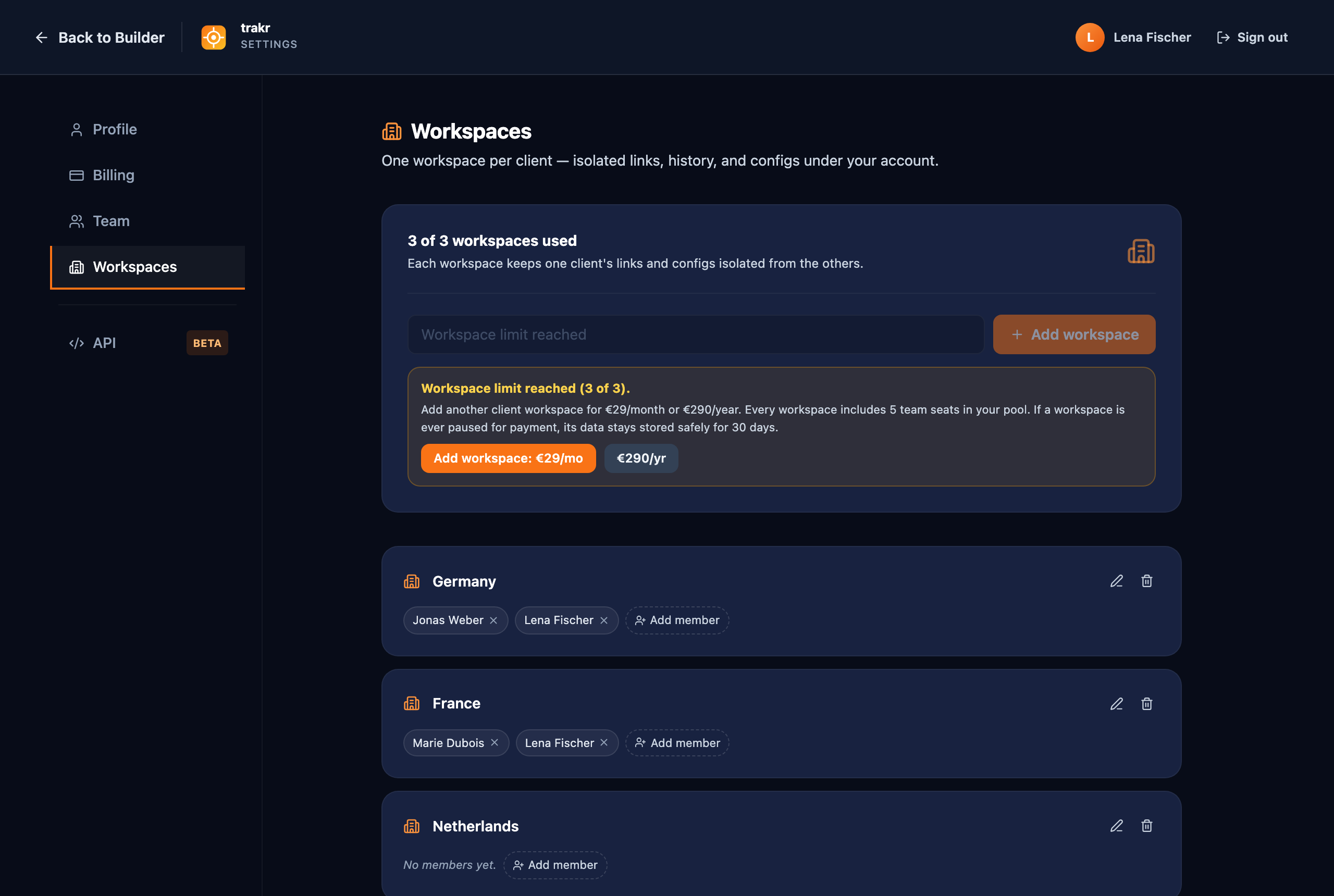
- Create a workspace per client on Settings → Workspaces: Germany, France, Netherlands.
- Assign people. Invite each client-side marketer or local team member to your account as usual (see Account, billing & team), then add them to their workspace with the member chips on the same page. Your own strategists can hold memberships in several workspaces at once.
- Set the tagging standard. Share one configuration at account level and star it as the default. Every workspace builds URLs by your rules from day one. A client with special requirements gets their own configuration inside their workspace instead.
- Work. Everyone opens the app, lands in their workspace, and builds. Germany's history fills with Germany's links, France's with France's, and neither team ever sees the other.
Creating workspaces and what they cost
Your plan includes your first workspace. Every additional client workspace is 29€/month or 290€/year and brings 5 additional team seats into your account's shared pool. When you reach your current limit, the Workspaces page shows the purchase card; the new slot is available the moment the payment goes through.
Admins create, rename, and archive workspaces. Members cannot; for them the page does not offer management at all.
Switching between workspaces
People with more than one membership pick where they work with the workspace switcher in the app header. Switching reloads the app into the selected workspace: its history, its default configuration, its everything.
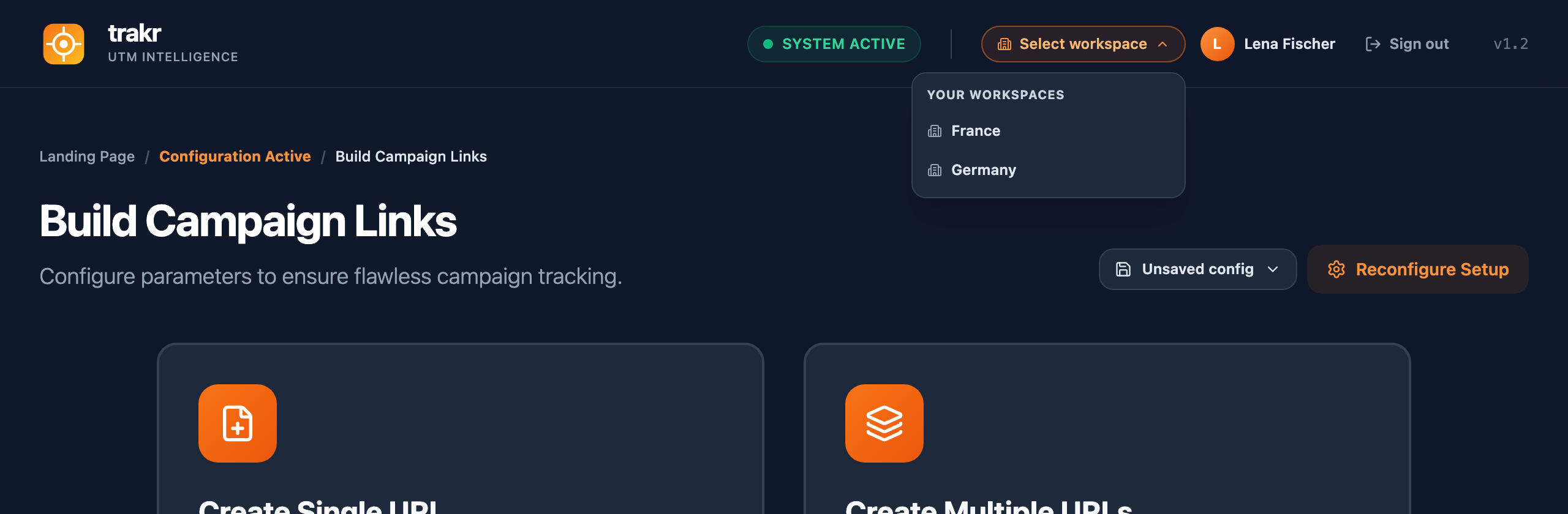
Members with a single membership never see a dropdown; they are simply in their workspace. Admins can also use the switcher to work inside a specific client context.
Configurations across clients
Configurations follow a two-level hierarchy that fits agency work naturally:
- Account level (created outside any workspace, shared): reaches every workspace. This is your house tagging standard. Star it as the default and every client builds by it.
- Workspace level (created inside a workspace, shared): reaches that workspace only. Star it as the workspace's default and it wins over the account default there, for the app and for the API alike.
Where does the assignment happen? Not in Settings: a configuration's workspace is decided by where you are when you save it. Configurations are managed in the builder, in the config dropdown at the top right. The concrete steps for a client-specific setup:
- Make sure you are a member of the client's workspace (add yourself on Settings → Workspaces).
- Switch into that workspace with the switcher in the header.
- Build or adjust the configuration, save it in the config dropdown, share it, and star it as the default.
Working at account level (no workspace selected)? Then your saved configuration is account-wide, and sharing it makes it the standard every workspace builds by. The details of sharing, starring, and cloning are on Configurations & sharing.
API keys and workspaces
The Trakr API understands workspaces too. When you create a key on Settings → API, you choose its scope:
- Whole account: the key reads and writes across all workspaces. Use it for your own agency infrastructure, like a reporting warehouse.
- One workspace: the key reads and writes only that client's workspace. Hand this kind to a client-side system (their server-side GTM container, for example) and it structurally cannot see any other client's data.
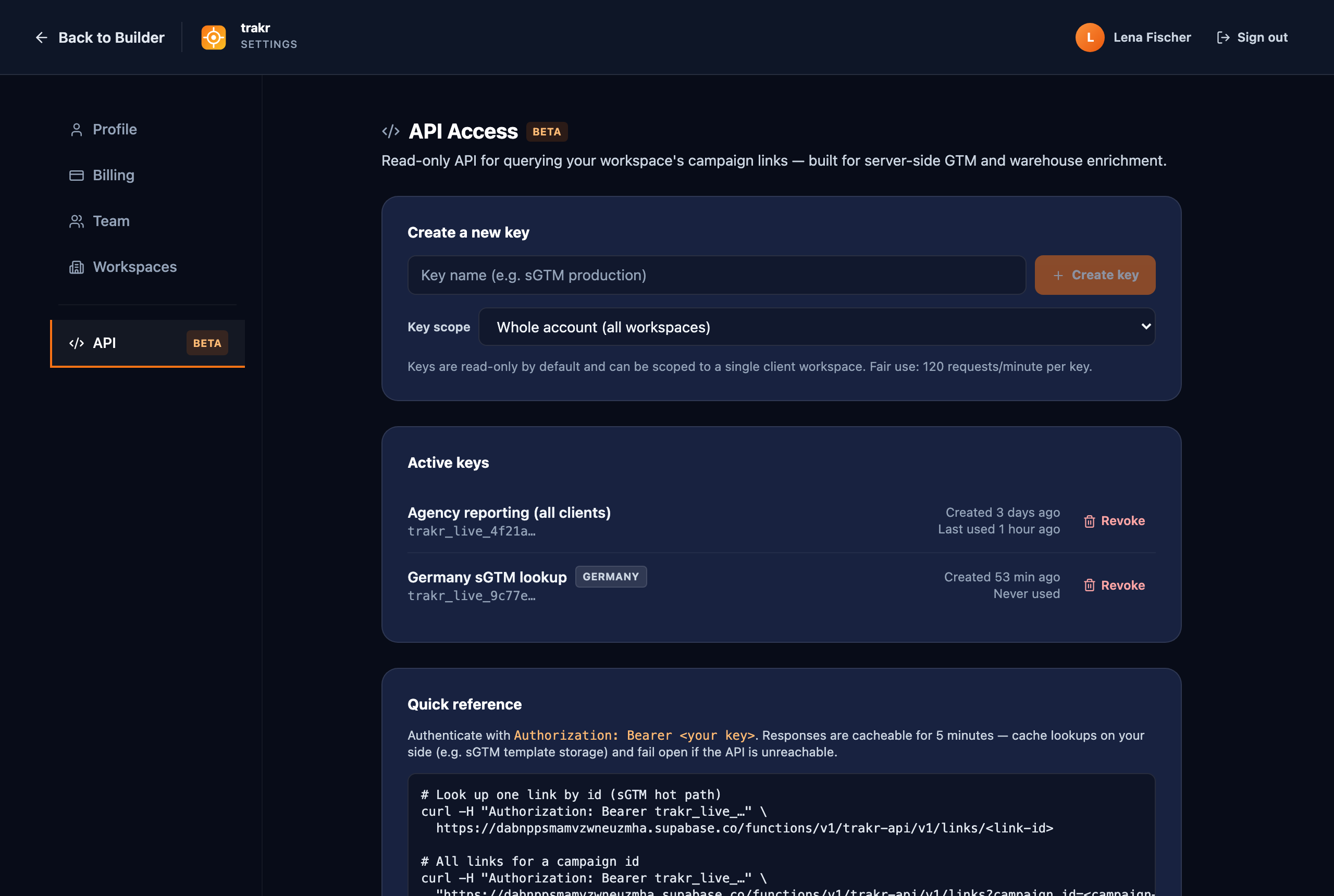
A scoped key stops working if its workspace is archived or paused for payment, and it resolves that workspace's default configuration first. The daily request pool stays shared across your whole account.
Billing hiccups and the 30-day rule
If a workspace payment fails, we retry automatically for 14 days and email you about it. If it cannot be collected, access to the affected workspaces is paused: they show a lock in the switcher, and members cannot enter them until the subscription is reactivated.
Paused data stays stored safely for 30 days. We send a reminder 7 days before that window ends. Reactivate at any point within it and everything is exactly as you left it. After the 30 days, the paused workspace's links, history, and workspace configurations are permanently removed.
When a client leaves
Archive their workspace (the bin icon on the Workspaces page). Archiving detaches the members and hides the workspace from everyday lists, but keeps its history stored, visible to admins only, and frees the slot against your limit. Archived workspaces refuse new members, and API keys scoped to them stop working.