Two views, one set of URLs
Generated History is the full table below the builder: every URL with its date, country, campaign, source and medium, GA4 channel, and content, plus filtering, sorting, CSV export, and deletion. The Library is the compact panel beside the builder: the same entries condensed into campaign cards so you can pull a past campaign back into the form with one click. They are two views of the same saved data; deleting an entry removes it from both, and restoring it brings it back to both.
The Library: reuse what worked
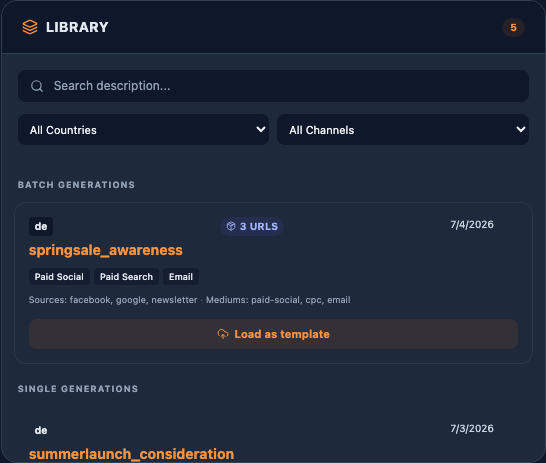
- Load as template / Load Config: fills the builder with that entry's saved values so you only change what differs for the new campaign. Mid-build, Trakr asks before replacing your current progress.
- Pin as template: every card carries a pin. Pinned entries move into a Pinned section at the top of the Library and stay there regardless of age, which turns your best campaigns into a curated template collection. Pinning a batch pins the whole batch, and a pin survives the trash: restore a deleted entry and its pin comes back with it.
- Batch cards: URLs generated together in bulk collapse into one card with a URL count and a channel pill per row. Loading a batch seeds the wizard from its first row; you re-pick channels on the channel step.
- Search and filters: a description search plus country and channel dropdowns, scoped to the Library.
- Team scope (Pro workspaces): members of a workspace get an All / Mine / Team toggle. Team entries show who created them.
Generated History: the working table
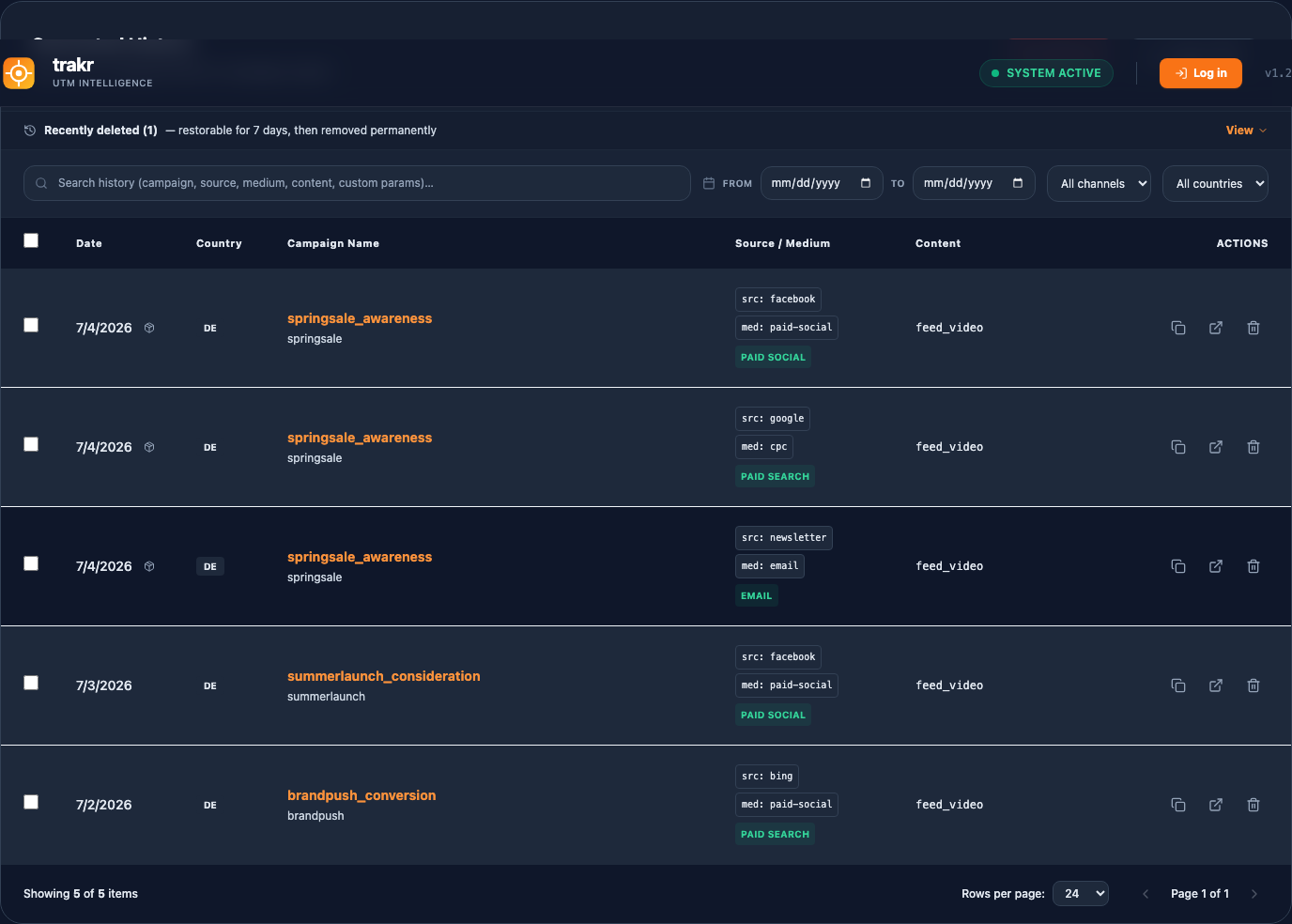
Finding things: the filter bar
- Search matches campaign, source, medium, content, description, country, channel, and custom parameter values.
- Date range: from/to date pickers, inclusive on both ends.
- Channel and country dropdowns: exact matches built from your own data.
Filters combine, the row count updates live, and Clear filters resets everything. Column headers sort.
Batches in the table
Rows that came from a bulk run carry a small box icon next to the date. Clicking it narrows the table to that batch and shows a banner with the batch's campaign name, its URL count, Copy N URLs (all of them, one per line, straight to your clipboard), Export batch as CSV, and Show all to leave the batch view.
Row actions and selection
Each row has Copy URL, QR code, Open Link, and Delete (two clicks: the first arms, the second confirms). Checkboxes select rows across pages; a selection adds Copy N URLs, Export Selected, and Delete Selected (N) buttons that disappear again once nothing is selected.
QR codes for print and offline campaigns
The QR code action opens the saved URL as a scannable code: download it as a print-ready PNG (1024 pixels) or as an SVG for designers and large-format print. The modal repeats the link's predicted GA4 channel, so the last thing you see before something goes to print is where its scans will land in your reports. In a batch view, Download N QR codes renders one PNG per row, named after its campaign value, and packages them as a single ZIP: one click covers a whole event's posters and flyers.
Test the scan before print. And check the channel line: GA4's default channel groups have no rule for a medium like qr, so give your offline links a channel in your configuration (for example a custom "Offline QR" channel matching that medium) before the poster ships. One caveat: a link saved as a parameter suffix, without a landing page URL, still downloads as a QR code, but a scan shows the parameter text instead of opening a page; the modal says so when it applies.
Exporting
Export CSV writes the current view (filtered, if you filtered) with dates in ISO format, the full URL, GA4 channel, source and medium per row, a Batch column, the campaign description, and one column per field of your active configuration's campaign and content structure. Every channel of a bulk batch is its own complete row.
Deleting, and getting things back
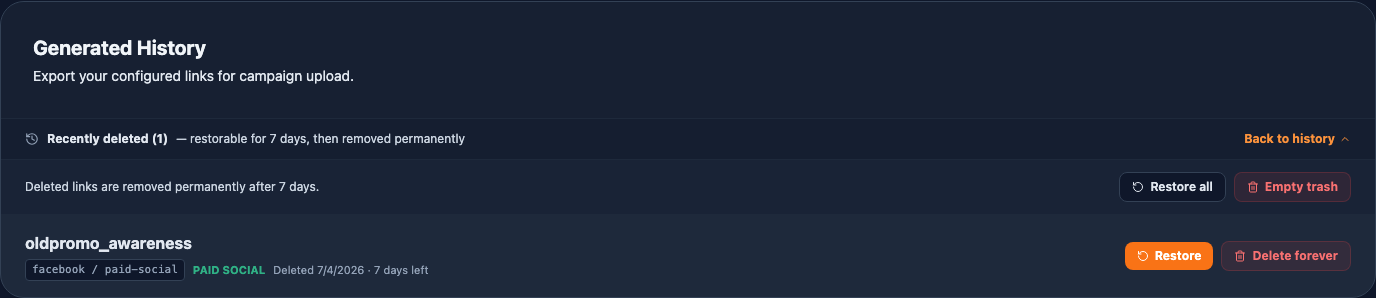
Deleting never destroys anything immediately, and it is always explicit: check the rows you mean, and a Delete Selected (N) button appears (there is no standing delete-everything button). It says exactly what it will do: "Move N links to Recently deleted?".
Deleted links sit in Recently deleted, a strip above the table, for 7 days. From there: Restore a single link, Restore all, or make it final with Delete forever / Empty trash (both ask twice). After 7 days, trashed links are removed permanently on their own.
Free accounts see the 50 most recent history entries. Older entries are preserved, not deleted, and reappear on upgrade; the banner under the table shows the real total.